Guide to Building a React Text Editor for SaaS Applications
Learn how to integrate a robust text editor into your React SaaS application. Explore top libraries, implementation steps, and best practices for customization and scaling.

Zakariae
Building a React text editor is a task that many developers encounter when creating SaaS applications. This guide provides a comprehensive overview of the libraries and implementation techniques needed to integrate a robust text editor into your React application.
Key Takeaways
- Understand the importance of a rich text editor in SaaS applications.
- Explore the top React libraries for building text editors.
- Learn the step-by-step implementation process for integrating a text editor.
- Discover best practices for customizing and extending text editor functionalities.
- Gain insights into maintaining and scaling text editor features in your application.
Understanding the Role of Text Editors in SaaS Applications
Text editors are essential components of many SaaS applications, providing users with the ability to format text, embed images, and create rich content. Whether you're building a content management system (CMS), an email marketing platform, or an online collaboration tool, a text editor is often a core feature. It enhances the user experience by allowing seamless content creation and management.
In the context of SaaS, a text editor should be intuitive, responsive, and versatile, offering users a variety of formatting options while maintaining performance across different devices and browsers.
Choosing the Right React Library for Your Text Editor
Several React libraries are available for implementing rich text editors, each with its own set of features, advantages, and trade-offs. Selecting the right library depends on your application's requirements, the complexity of the editor, and your team's familiarity with the library.
Popular libraries include Draft.js, Quill, Slate.js, and TipTap. These libraries offer varying levels of customization, ease of use, and support for advanced features like real-time collaboration and AI integration.
Draft.js: A Popular Choice for Customization
Draft.js is a powerful library developed by Facebook, offering extensive customization options for building rich text editors. It provides a robust API for managing editor state, allowing developers to create complex features such as collaborative editing and custom toolbars.
One of the strengths of Draft.js is its flexibility in rendering content and handling complex text operations. It's particularly suitable for applications requiring custom formatting options and integrations with other tools.
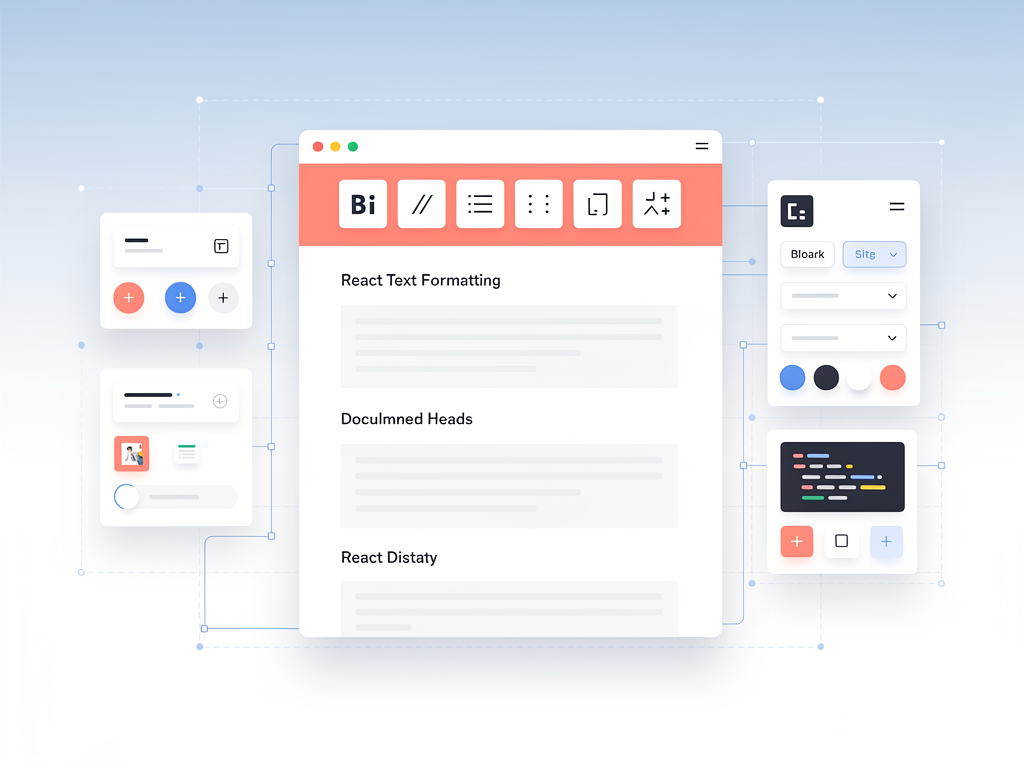
Quill: Lightweight and Easy to Use
Quill is known for its simplicity and ease of integration, making it a popular choice for developers looking to implement a straightforward text editor. It comes with a variety of built-in themes and modules, allowing for quick setup and deployment.
Quill is ideal for applications where a lightweight editor is preferred, and it provides a user-friendly interface with support for basic text formatting, image embedding, and link creation.
Slate.js: Rich Editing Experience
Slate.js is designed to provide a rich editing experience with a focus on customization and extensibility. It offers a flexible architecture that allows developers to create custom plugins and extend the editor's functionality to suit specific needs.
With Slate.js, developers can implement complex features such as tables, lists, and media embedding, making it suitable for applications requiring advanced text manipulation capabilities.
TipTap: Modern and Versatile
TipTap is a modern editor built on top of ProseMirror, offering a clean API and extensive customization options. It supports collaborative editing, real-time updates, and integration with other libraries, making it a versatile choice for modern SaaS applications.
TipTap's modular design allows developers to easily add or remove features, ensuring the editor remains lightweight and efficient while providing a rich user experience.
Implementing a React Text Editor: Step-by-Step Guide
Integrating a text editor into your React application involves several steps, from selecting the right library to configuring the editor and managing its state. Below is a step-by-step guide to help you get started:
- Select the library: Choose a library that best fits your application's requirements and your team's expertise.
- Install the library: Use npm or yarn to install the chosen library and any necessary dependencies.
- Configure the editor: Set up the editor with default settings, customizing the toolbar and appearance as needed.
- Manage editor state: Use React's state management to handle editor content and updates efficiently.
- Implement additional features: Add plugins or custom functionality to extend the editor's capabilities.
- Test and deploy: Ensure the editor works correctly across different devices and browsers before deploying.
Customizing and Extending Text Editor Functionalities
Customization is key to making your text editor stand out and meet the specific needs of your users. Libraries like Draft.js and Slate.js offer extensive APIs for creating custom plugins, toolbars, and integrations.
Consider adding features such as syntax highlighting, markdown support, and collaborative editing to enhance user experience. These can be implemented using existing plugins or by developing custom solutions tailored to your application's requirements.
Maintaining and Scaling Your Text Editor
Once your text editor is integrated, maintaining and scaling its features is crucial for ensuring continued performance and reliability. Regular updates, bug fixes, and optimizations are necessary to keep the editor functioning smoothly.
Monitor user feedback and usage analytics to identify areas for improvement and potential new features. Scaling your editor may involve optimizing its performance for large-scale usage or implementing additional security measures to protect user data.
Best Practices for Text Editor Integration
To ensure a seamless integration of a text editor into your SaaS application, consider the following best practices:
- Responsive design: Ensure the editor is fully responsive and accessible across all devices.
- Performance optimization: Optimize the editor's performance to handle large volumes of text and complex formatting.
- User feedback: Regularly gather user feedback to identify areas for improvement and new feature requests.
- Security measures: Implement security protocols to protect user data and prevent unauthorized access.
Integrating AI Features into Your Text Editor
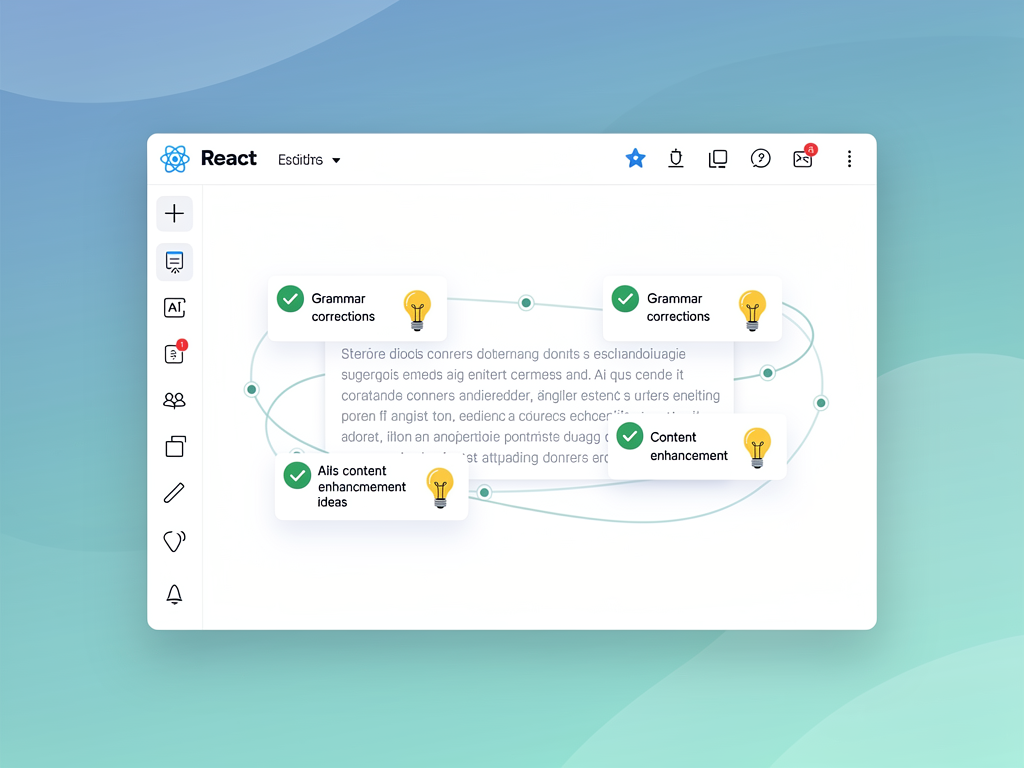
AI integration can significantly enhance the capabilities of your text editor, offering features such as grammar correction, content suggestions, and predictive text. Libraries like Eddyter provide built-in AI functionalities that can be easily integrated into your React application.
Consider leveraging AI to automate repetitive tasks, improve content quality, and provide users with intelligent editing assistance. This can lead to increased user satisfaction and engagement with your SaaS platform.
Real-Time Collaboration in Text Editors
Real-time collaboration is a sought-after feature in modern SaaS applications, allowing multiple users to edit documents simultaneously. Implementing this feature requires careful consideration of concurrency and consistency.
Technologies such as Operational Transformation (OT) and Conflict-free Replicated Data Types (CRDT) are commonly used to manage collaborative editing. These ensure all users see the same document state, regardless of the order of edits.
Challenges and Solutions in Text Editor Development
Developing a text editor comes with its own set of challenges, from handling complex text operations to ensuring cross-browser compatibility. Understanding these challenges and implementing solutions can help you create a robust editor.
Common challenges include managing editor state, handling large text volumes, and integrating third-party plugins. Solutions involve optimizing performance, using efficient state management techniques, and selecting libraries with strong community support and documentation.

Accessibility Considerations for React Text Editors
Creating an accessible text editor is not just a best practice but a legal requirement in many jurisdictions. When building a React text editor, developers must ensure that users with disabilities can effectively create and edit content. This involves implementing proper keyboard navigation, screen reader support, and visual accessibility features.
Keyboard accessibility is fundamental to any text editor implementation. Users should be able to navigate through all toolbar options, apply formatting, and manage content without relying on a mouse. Consider implementing the following keyboard shortcuts and navigation patterns:
- Tab navigation: Allow users to move between toolbar buttons and the editing area using the Tab key.
- Arrow key navigation: Enable movement within toolbar groups using arrow keys.
- Standard shortcuts: Support common formatting shortcuts like Ctrl+B for bold and Ctrl+I for italic.
- Focus indicators: Provide clear visual focus states for all interactive elements.
Screen reader compatibility requires proper ARIA attributes and semantic HTML structure. Each toolbar button should have descriptive labels, and the editor content area needs appropriate role attributes. Libraries like TipTap and Slate.js offer built-in accessibility features, but additional configuration is often necessary.
Tip: Test your text editor with popular screen readers like NVDA, JAWS, and VoiceOver to ensure compatibility across different assistive technologies.
Color contrast and visual design also play crucial roles in accessibility. Ensure that text and background colors meet WCAG 2.1 AA standards with a minimum contrast ratio of 4.5:1 for normal text. Provide alternative visual cues beyond color alone for formatting indicators and error states.
Performance Optimization Strategies for Large Documents
Handling large documents efficiently is a common challenge when building React text editors for enterprise SaaS applications. Without proper optimization, editors can become sluggish when users work with lengthy content, leading to poor user experience and potential data loss.
Virtualization is one of the most effective techniques for improving performance with large documents. Instead of rendering the entire document in the DOM, virtualized editors only render the visible portion plus a small buffer. This dramatically reduces memory usage and improves rendering speed.
| Optimization Technique | Performance Impact | Implementation Complexity |
|---|---|---|
| Content Virtualization | High | Complex |
| Debounced State Updates | Medium | Simple |
| Lazy Loading Images | Medium | Simple |
| Web Worker Processing | High | Moderate |
Debouncing and throttling state updates prevent excessive re-renders during rapid typing. Instead of updating the application state on every keystroke, batch updates at intervals of 100 to 300 milliseconds. This approach maintains responsiveness while reducing computational overhead.
Consider offloading heavy processing tasks to Web Workers. Operations like spell checking, word counting, and content analysis can run in background threads without blocking the main UI thread. This keeps the editor responsive even during intensive operations.
Memory management is equally important for long editing sessions. Implement proper cleanup for event listeners and subscriptions when components unmount. Monitor memory usage during development using browser developer tools to identify and fix memory leaks before they affect production users.
Content Sanitization and Security Best Practices
Security is paramount when implementing a React text editor that accepts user input. Rich text editors are particularly vulnerable to cross-site scripting (XSS) attacks because they allow HTML content. Implementing robust sanitization practices protects both your application and your users.
Input sanitization should occur at multiple levels in your application. Client-side sanitization provides immediate feedback and prevents obviously malicious content, while server-side sanitization serves as the authoritative security layer. Never trust client-side validation alone.
Popular sanitization libraries for JavaScript include:
- DOMPurify: A fast and tolerant XSS sanitizer that works with HTML, SVG, and MathML.
- sanitize-html: A configurable library that allows whitelisting specific tags and attributes.
- xss: A lightweight module for filtering XSS with customizable rules.
When configuring sanitization, create an allowlist of permitted HTML tags and attributes rather than trying to block known malicious patterns. This approach is more secure because it explicitly defines what is allowed rather than attempting to anticipate all possible attack vectors.
Security Note: Always sanitize content before storing it in your database and again before rendering it to other users. This defense-in-depth approach protects against both storage and reflected XSS attacks.
Content Security Policy (CSP) headers provide an additional layer of protection by restricting the sources from which scripts can execute. Configure your server to send appropriate CSP headers that prevent inline script execution and limit external resource loading to trusted domains.
Regular security audits and dependency updates are essential for maintaining a secure text editor. Monitor security advisories for your chosen library and its dependencies, and apply patches promptly when vulnerabilities are discovered.
Testing Strategies for React Text Editors
Comprehensive testing ensures your React text editor functions correctly across different scenarios and user interactions. A well-structured testing strategy combines unit tests, integration tests, and end-to-end tests to cover all aspects of editor functionality.
Unit testing focuses on individual components and utility functions. Test formatting functions, content transformations, and state management logic in isolation. Libraries like Jest and React Testing Library provide excellent tools for component-level testing.
Key areas to cover in your test suite include:
- Formatting operations: Verify that bold, italic, underline, and other formatting options apply correctly.
- Content serialization: Test conversion between editor state and HTML or other output formats.
- Keyboard shortcuts: Ensure all shortcuts trigger the expected actions.
- Undo and redo: Validate that history management works correctly through multiple operations.
- Edge cases: Test behavior with empty content, extremely long text, and special characters.
End-to-end testing with tools like Cypress or Playwright simulates real user interactions. These tests verify that the editor works correctly within the context of your full application, including interactions with backend services and other components.
Visual regression testing catches unintended styling changes that might affect the editor's appearance. Tools like Percy or Chromatic capture screenshots during test runs and compare them against baseline images to detect visual differences.
Performance testing should be part of your continuous integration pipeline. Measure metrics like time to interactive, input latency, and memory consumption under various conditions. Set performance budgets and fail builds that exceed acceptable thresholds to prevent performance regressions from reaching production.
Conclusion
Building a React text editor for your SaaS application is a rewarding endeavor that can greatly enhance user experience and engagement. By selecting the right library, implementing best practices, and integrating advanced features, you can create a text editor that meets your application's needs and delights your users.
As you continue to develop and maintain your text editor, consider scalability, performance, and user feedback to ensure it remains a valuable component of your SaaS platform.
Frequently Asked Questions
What is the best React library for building a text editor?
The best library depends on your specific needs. Draft.js offers extensive customization, Quill is lightweight and easy to use, Slate.js provides a rich editing experience, and TipTap is modern and versatile. Evaluate your application's requirements to choose the most suitable option.
How can I integrate AI features into my text editor?
AI features can be integrated using libraries like Eddyter, which offer built-in functionalities such as grammar correction and content suggestions. These features enhance user experience by automating repetitive tasks and improving content quality.
What are the challenges in developing a text editor?
Common challenges include managing editor state, ensuring cross-browser compatibility, and handling large text volumes. Solutions involve optimizing performance, using efficient state management techniques, and selecting libraries with strong community support and documentation.
How do I implement real-time collaboration in my text editor?
Real-time collaboration can be implemented using technologies like Operational Transformation (OT) and Conflict-free Replicated Data Types (CRDT). These ensure all users see the same document state, regardless of the order of edits, by managing concurrency and consistency.
What are the best practices for integrating a text editor into a SaaS application?
Best practices include ensuring responsive design, optimizing performance, gathering user feedback, and implementing security measures. These practices help create a seamless integration and enhance user satisfaction.
How can I customize my text editor to meet specific needs?
Customization can be achieved through the use of APIs offered by libraries like Draft.js and Slate.js. You can create custom plugins, toolbars, and integrations to add features such as syntax highlighting, markdown support, and collaborative editing.
Ready to Build Your Next SaaS Application?
Explore our Ultimate Next.js Boilerplate for SaaS Applications to fast-track your development process with a comprehensive, feature-rich starter kit.
Subscribe to our newsletter
Subscribe to our newsletter and stay up-to-date with the latest news and updates.