Git vs GitHub: Essential Tools for SaaS Development Teams
Discover the crucial differences between Git and GitHub for SaaS development. Learn how mastering both can enhance team collaboration and streamline project workflows.

Zakariae
If you have ever worked on a software project with multiple developers, you know the chaos that ensues when everyone edits the same files without coordination. Code gets overwritten, features disappear, and debugging becomes a nightmare. This is precisely why understanding the distinction between Git and GitHub is essential for any SaaS development team aiming to ship products efficiently. While these two terms are often used interchangeably by newcomers, they serve fundamentally different purposes in the software development workflow. Git is a distributed version control system that tracks changes to your codebase, while GitHub is a cloud-based platform that hosts Git repositories and provides collaboration tools. Mastering both is non-negotiable for modern development teams, whether you are building a SaaS template from scratch or working with a Next.js boilerplate to accelerate your project timeline.
Key Takeaways
- Git is a version control system that runs locally on your machine and tracks every change made to your codebase, enabling you to revert to previous versions and manage parallel development streams.
- GitHub is a cloud-hosted platform that stores Git repositories remotely, providing collaboration features like pull requests, issues, and project management tools.
- Understanding the git vs github distinction is crucial because Git can function without GitHub, but GitHub cannot function without Git.
- SaaS development teams benefit immensely from combining Git's version control capabilities with GitHub's collaboration and CI/CD integration features.
- Proper branching strategies and workflow conventions can dramatically improve team productivity and code quality.
- GitHub Actions and integrations enable automated testing, deployment, and code review processes that are essential for shipping SaaS products quickly.
What Is Git and Why Does It Matter for SaaS Development
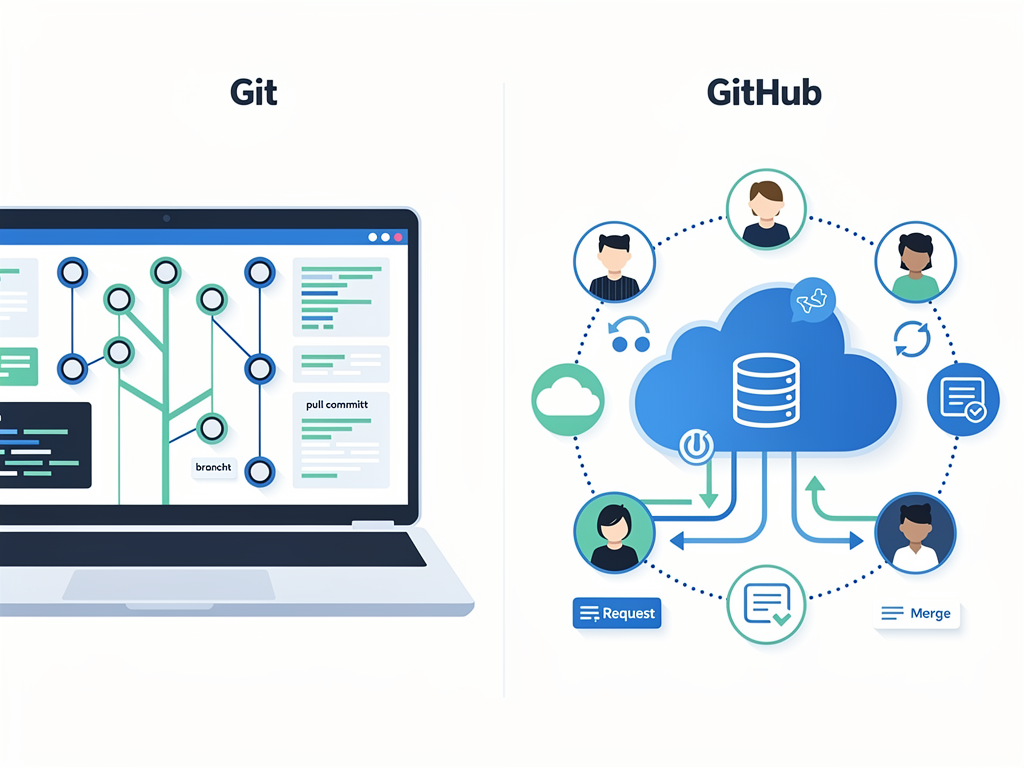
Git is a distributed version control system created by Linus Torvalds in 2005 to manage the development of the Linux kernel. Unlike centralized version control systems that came before it, Git gives every developer a complete copy of the entire repository history on their local machine. This architectural decision has profound implications for how development teams work together, especially in the fast-paced world of SaaS product development.
At its core, Git tracks changes to files over time by creating snapshots of your project at specific points, called commits. Each commit contains a unique identifier (a SHA hash), the author's information, a timestamp, and a message describing what changed. This creates an immutable history that you can traverse, compare, and restore at any point. For SaaS teams shipping features rapidly, this means you can always roll back a problematic deployment or investigate when a bug was introduced.
The distributed nature of Git means that every team member has a fully functional repository on their machine. You can commit changes, create branches, and view history without any network connection. This is particularly valuable for remote development teams spread across different time zones. A developer in San Francisco can work on a feature while their colleague in Berlin sleeps, and Git ensures their work can be merged seamlessly when they reconnect.
Git's branching model is perhaps its most powerful feature for SaaS development. Creating a branch in Git is nearly instantaneous and costs almost nothing in terms of storage or performance. This encourages developers to create branches liberally for new features, bug fixes, or experiments. When you are iterating quickly on a SaaS product, the ability to isolate changes and merge them only when ready is invaluable for maintaining a stable production environment.
Understanding GitHub as a Collaboration Platform
GitHub launched in 2008 as a hosting service for Git repositories, but it has evolved into a comprehensive platform for software development collaboration. While Git handles version control, GitHub adds layers of functionality that make working in teams significantly more efficient. Think of Git as the engine and GitHub as the entire vehicle, complete with navigation, climate control, and safety features.
The most fundamental service GitHub provides is remote repository hosting. When you push your local Git repository to GitHub, you create a central location where all team members can access the latest code. This solves the coordination problem of distributed teams. Instead of emailing zip files or sharing code through file servers, everyone pushes and pulls from the same authoritative source.
Beyond simple hosting, GitHub introduced the concept of pull requests, which have become the standard mechanism for code review in modern development workflows. A pull request is a proposal to merge changes from one branch into another. It creates a dedicated space for discussion, where team members can review the code line by line, leave comments, suggest improvements, and approve or request changes. For SaaS teams focused on code quality, this workflow catches bugs before they reach production.
GitHub also provides issue tracking integrated directly with your codebase. You can create issues to track bugs, feature requests, or technical debt, and link them to specific commits or pull requests. This creates traceability between your project management and your code changes. When a customer reports a problem, you can track the issue from initial report through the fix and deployment, all within GitHub's interface.
The platform's project boards offer Kanban-style organization for managing development work. You can create columns representing different stages of your workflow (backlog, in progress, review, done) and move issues and pull requests through these stages. For SaaS startups without dedicated project management tools, GitHub Projects can serve as a lightweight alternative that keeps everything in one place.
Core Differences Between Git and GitHub Explained
Understanding the fundamental differences between Git and GitHub is essential for making informed decisions about your development workflow. These are not competing tools but complementary technologies that serve different purposes in the software development lifecycle.
Installation and Access represent the first major difference. Git is software you install on your local machine. It runs entirely on your computer and requires no internet connection for most operations. GitHub, conversely, is a web-based service accessed through a browser or API. You need an account and internet connectivity to interact with GitHub's features. This distinction matters when considering offline work capabilities and data sovereignty.
Functionality Scope differs dramatically between the two. Git's functionality is limited to version control operations: tracking changes, creating branches, merging code, and managing history. GitHub extends this with collaboration features, access control, automation pipelines, security scanning, and integrations with hundreds of third-party services. Git does one thing exceptionally well, while GitHub provides a platform for the entire development lifecycle.
| Aspect | Git | GitHub |
|---|---|---|
| Type | Version control software | Cloud hosting platform |
| Installation | Installed locally | Accessed via browser/API |
| Network Required | No (for most operations) | Yes |
| Primary Function | Track code changes | Host and collaborate on repositories |
| Cost | Free and open source | Free tier with paid plans |
| Alternatives | Mercurial, SVN | GitLab, Bitbucket, Azure DevOps |
| Owned By | Open source community | Microsoft (since 2018) |
Ownership and Control also differ significantly. Git is open-source software maintained by the community. You can inspect its source code, modify it, and use it without any licensing restrictions. GitHub is a proprietary service owned by Microsoft since 2018. While GitHub offers generous free tiers, your data resides on their servers, subject to their terms of service. For some organizations, this raises concerns about vendor lock-in and data control.
Alternatives and Ecosystem highlight another key distinction. Git has alternatives like Mercurial and Subversion, though Git has become the dominant version control system. GitHub competes with GitLab, Bitbucket, Azure DevOps, and self-hosted solutions. Importantly, you can use Git with any of these platforms, or even without any platform at all. GitHub is one option among many for hosting Git repositories.
Essential Git Commands Every SaaS Developer Must Know
Proficiency with Git commands is foundational for any developer working on SaaS products. While graphical interfaces exist, understanding the command line gives you more control and helps you troubleshoot when things go wrong. Here are the essential commands organized by workflow stage.
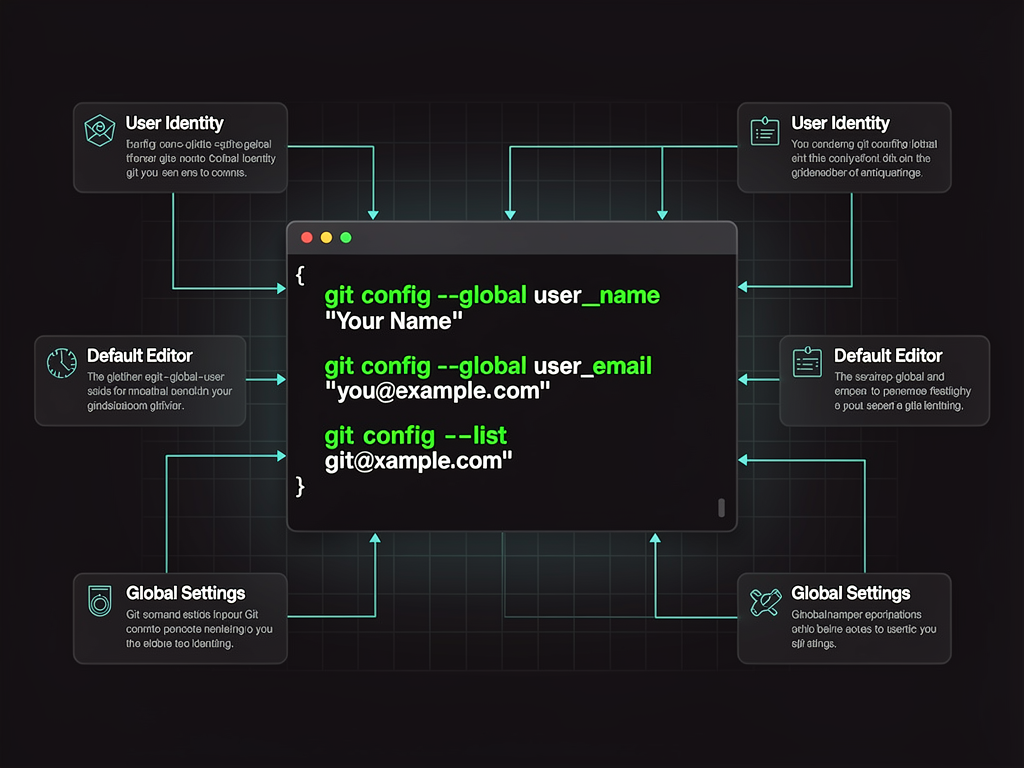
Repository Initialization and Configuration commands set up your working environment. The command git init creates a new Git repository in your current directory. Use git clone [url] to download an existing repository from GitHub or another remote. Configure your identity with git config --global user.name "Your Name" and git config --global user.email "your@email.com" so your commits are properly attributed.
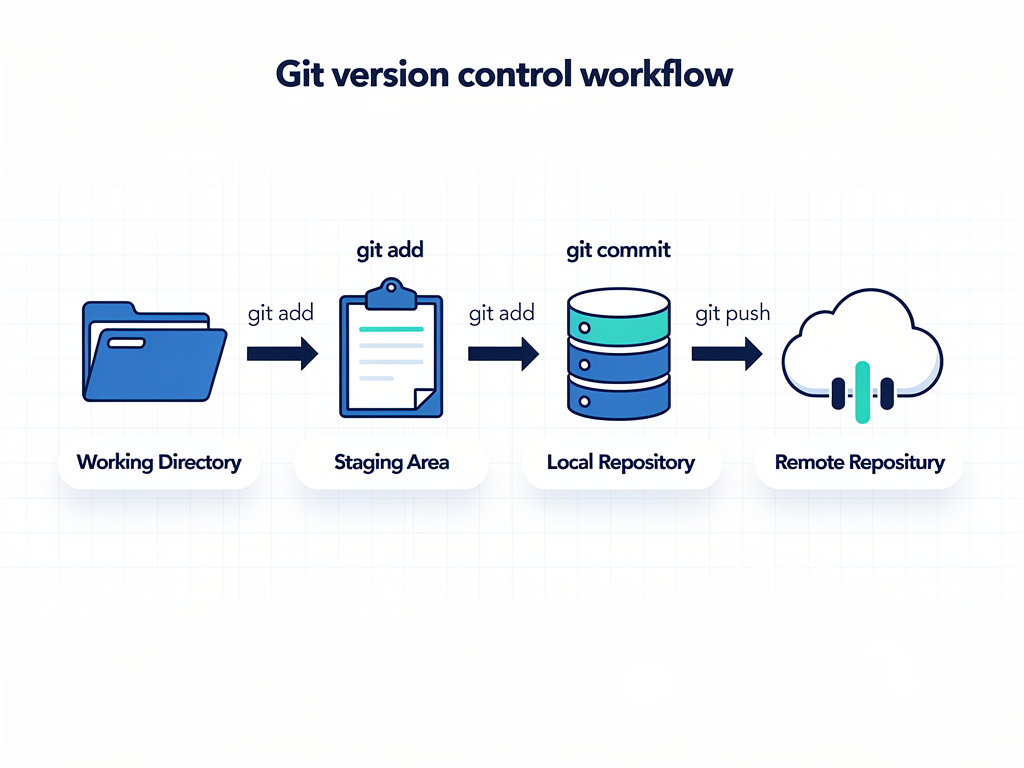
Daily Workflow Commands form the core of your interaction with Git. Check the status of your working directory with git status to see which files have changed. Stage changes for commit using git add [file] or git add . to stage everything. Create a commit with git commit -m "Descriptive message". View your commit history with git log or git log --oneline for a condensed view.
Pro Tip: Write commit messages in the imperative mood, as if completing the sentence "This commit will..." For example, "Add user authentication" rather than "Added user authentication" or "Adding user authentication." This convention makes your history more readable and consistent.
Branching and Merging Commands enable parallel development. Create a new branch with git branch [branch-name] and switch to it with git checkout [branch-name], or combine both with git checkout -b [branch-name]. List all branches with git branch -a. Merge changes from another branch into your current branch with git merge [branch-name]. Delete a branch you no longer need with git branch -d [branch-name].
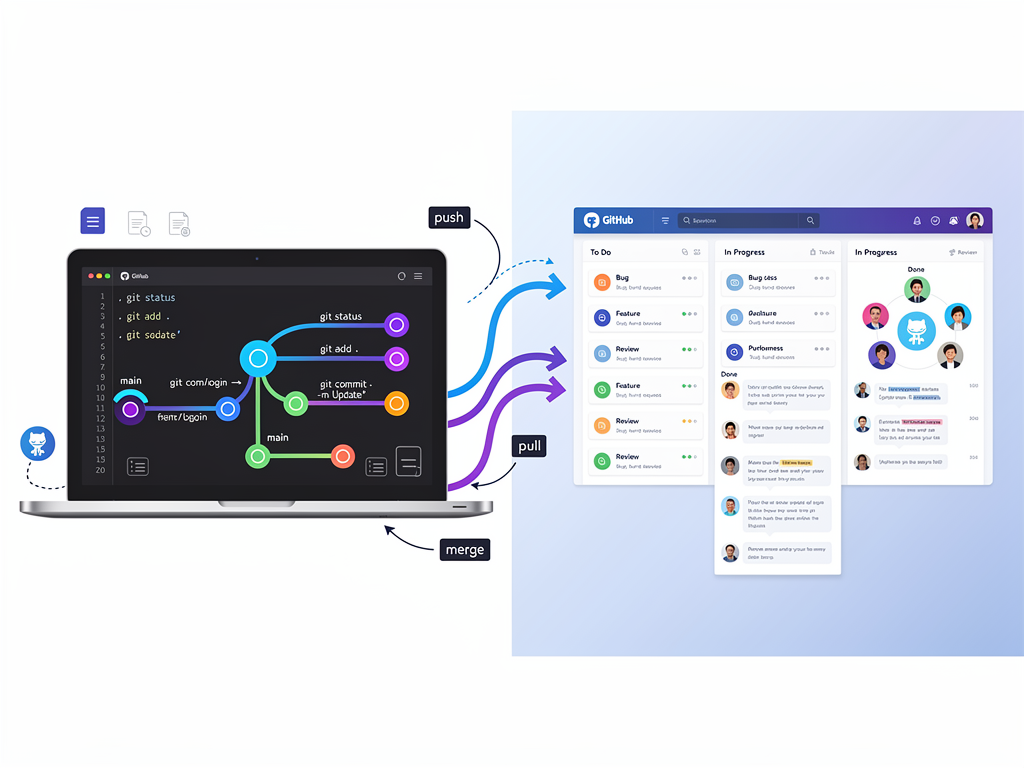
Remote Repository Commands synchronize your local work with GitHub. Add a remote repository with git remote add origin [url]. Push your commits to the remote with git push origin [branch-name]. Pull changes from the remote with git pull origin [branch-name]. Fetch changes without merging them with git fetch origin to see what others have done before integrating their work.
Undoing Changes is crucial when mistakes happen. Discard changes in your working directory with git checkout -- [file]. Unstage a file while keeping your changes with git reset HEAD [file]. Revert a commit by creating a new commit that undoes it with git revert [commit-hash]. For more drastic measures, git reset --hard [commit-hash] moves your branch pointer and discards all changes, but use this carefully as it rewrites history.
GitHub Features That Accelerate SaaS Product Development
GitHub has evolved far beyond simple repository hosting to become a comprehensive platform for modern software development. Understanding and leveraging these features can significantly accelerate your SaaS product development cycle.
GitHub Actions provides native CI/CD capabilities directly integrated with your repository. You define workflows in YAML files that trigger on specific events like pushes, pull requests, or scheduled times. A typical SaaS project might have workflows for running tests on every pull request, building and deploying to staging when code merges to the develop branch, and deploying to production when code merges to main. This automation reduces manual work and ensures consistent quality gates.
Code Security Features help protect your SaaS application from vulnerabilities. Dependabot automatically scans your dependencies and creates pull requests to update packages with known security issues. Secret scanning detects accidentally committed API keys or passwords and alerts you before they can be exploited. Code scanning analyzes your code for security vulnerabilities using static analysis. For SaaS products handling customer data, these features are essential for maintaining security compliance.
GitHub Codespaces provides cloud-based development environments that launch in seconds. Each Codespace is a fully configured development environment running in a container, accessible through your browser or VS Code. This is particularly valuable for SaaS teams because new developers can start contributing immediately without spending hours setting up their local environment. When working with a complex SaaS starter kit, Codespaces ensures everyone has an identical development setup.
GitHub Copilot integration brings AI-powered code completion directly into your workflow. While not a replacement for understanding your codebase, Copilot can accelerate development by suggesting code completions, generating boilerplate, and helping with unfamiliar APIs. For SaaS developers working across multiple technologies, this can significantly reduce context-switching overhead.
Protected Branches and Branch Rules enforce quality standards on your codebase. You can require pull request reviews before merging, mandate that status checks pass, prevent force pushes to important branches, and require signed commits. These guardrails are essential for SaaS teams shipping to production, ensuring that no code reaches customers without proper review and testing.
Branching Strategies for SaaS Development Teams
Choosing the right branching strategy is crucial for maintaining development velocity while ensuring code quality. Different strategies suit different team sizes and release cadences. Here are the most common approaches used by successful SaaS development teams.
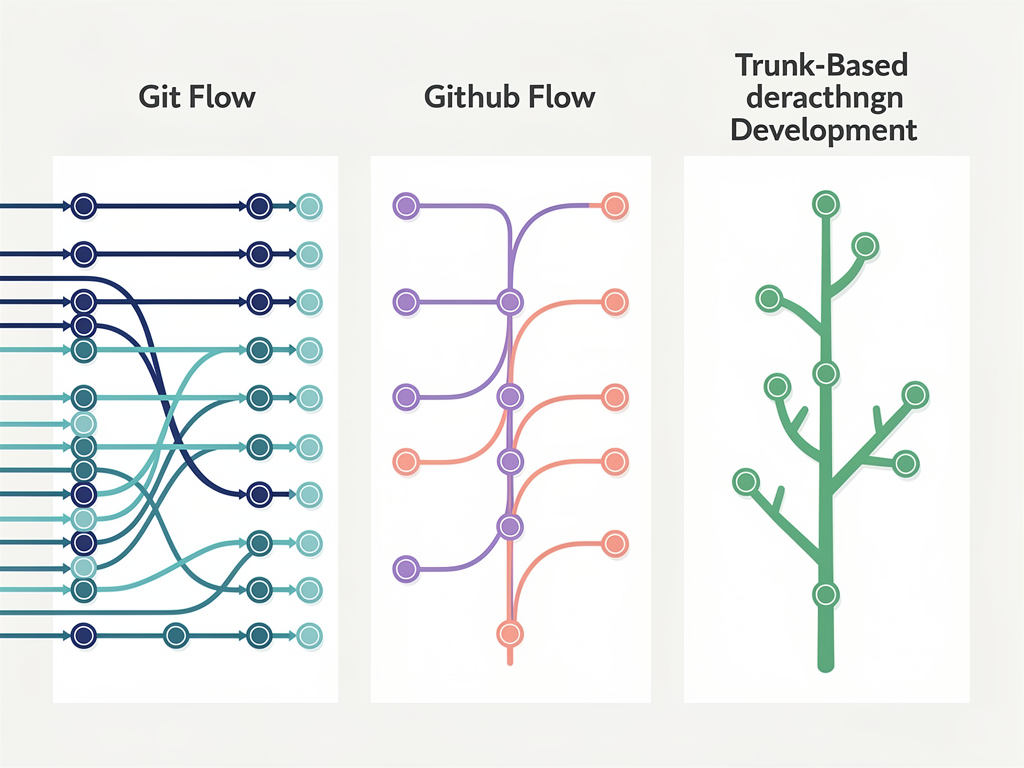
Git Flow is a comprehensive branching model that uses multiple long-lived branches. The main branch always reflects production-ready code. The develop branch serves as an integration branch for features. Feature branches are created from develop for new functionality. Release branches prepare for production releases, and hotfix branches address urgent production issues. Git Flow works well for SaaS products with scheduled release cycles but can be overly complex for teams practicing continuous deployment.
GitHub Flow is a simpler alternative designed for continuous deployment. There is only one long-lived branch (main), which is always deployable. Developers create feature branches from main, open pull requests when ready for review, and merge directly to main after approval. Deployment happens immediately after merging. This lightweight approach suits SaaS teams that deploy multiple times per day and want minimal process overhead.
Trunk-Based Development takes simplicity further by having all developers commit directly to the main branch, or to very short-lived feature branches that merge within a day or two. This approach requires excellent test coverage and feature flags to manage incomplete work. It eliminates merge conflicts almost entirely and encourages small, incremental changes. Many high-performing SaaS companies use trunk-based development to achieve rapid iteration.
Recommendation: For most SaaS startups, GitHub Flow provides the best balance of simplicity and control. Start with this approach and evolve toward trunk-based development as your testing and deployment automation matures.
Feature Flags complement any branching strategy by decoupling deployment from release. With feature flags, you can merge incomplete features to main behind a flag that hides them from users. This enables continuous integration while controlling when features become visible. Services like LaunchDarkly, Split, and even simple environment variables can implement feature flags. For SaaS products, this allows testing features with specific customers before broad rollout.
Setting Up an Effective Git and GitHub Workflow
Establishing a consistent workflow from the beginning saves countless hours of confusion and rework as your team grows. Here is a step-by-step guide to setting up an effective Git and GitHub workflow for your SaaS project.
Repository Structure should be thoughtfully organized from the start. Create a clear directory structure that separates concerns (src, tests, docs, scripts). Include essential files like README.md with setup instructions, CONTRIBUTING.md with workflow guidelines, and .gitignore to exclude build artifacts and sensitive files. If you are using a Next.js SaaS template or SaaS boilerplate, these files are typically included, but customize them for your specific needs.
Branch Protection Rules should be configured immediately after creating your repository. Navigate to Settings, then Branches, and add a rule for your main branch. Require pull request reviews (at least one reviewer for small teams, two for larger teams). Require status checks to pass before merging. Enable "Require branches to be up to date before merging" to prevent integration issues. These rules create guardrails that prevent accidental damage to your production code.
Pull Request Templates standardize the information developers provide when proposing changes. Create a file at .github/PULL_REQUEST_TEMPLATE.md with sections for description, type of change, testing performed, and any deployment notes. This ensures reviewers have the context they need and creates documentation for future reference. A good template reduces back-and-forth and speeds up the review process.
Issue Templates similarly standardize bug reports and feature requests. Create templates in .github/ISSUE_TEMPLATE/ for different issue types. A bug report template should request steps to reproduce, expected behavior, actual behavior, and environment details. A feature request template should capture the problem being solved, proposed solution, and alternatives considered. Well-structured issues lead to faster resolution.
Automated Workflows with GitHub Actions should be set up early. At minimum, create a workflow that runs your test suite on every pull request. Add linting and formatting checks to maintain code consistency. Consider adding workflows for security scanning, dependency updates, and deployment. Starting with automation early establishes good habits and catches issues before they compound.
Common Git Mistakes and How to Recover From Them
Even experienced developers make Git mistakes. Knowing how to recover gracefully is as important as knowing how to use Git correctly. Here are the most common mistakes and their solutions.
Committing to the Wrong Branch happens when you start working before creating a feature branch. If you have not pushed yet, use git reset HEAD~1 to undo the commit while keeping your changes, then create and switch to the correct branch and commit again. If you have already pushed, create a new branch from your current position, reset the original branch to before your commit, and force push (only if no one else has pulled your changes).
Accidentally Committing Sensitive Information like API keys or passwords requires immediate action. First, rotate the exposed credentials immediately, as they should be considered compromised. Then remove the sensitive data from your repository history using git filter-branch or the BFG Repo Cleaner tool. Force push the cleaned history. Note that anyone who has cloned your repository may still have the sensitive data in their local copy.
Merge Conflicts occur when Git cannot automatically combine changes from different branches. When you encounter a conflict, Git marks the conflicting sections in the affected files. Open each file, find the conflict markers (<<<<<<<, =======, >>>>>>>), and manually resolve by choosing the correct code or combining both versions. Stage the resolved files with git add and complete the merge with git commit. Regular merging from the main branch into feature branches reduces conflict severity.
Losing Work After a Hard Reset can often be recovered using Git's reflog. The reflog records every position of HEAD, even after resets. Run git reflog to see the history, find the commit hash before your reset, and use git checkout [hash] or git reset --hard [hash] to restore your work. The reflog is your safety net for most Git disasters.
Pushing to the Wrong Remote or branch can be corrected if caught quickly. If you pushed to the wrong branch, you can delete the remote branch with git push origin --delete [wrong-branch] and push to the correct one. If you pushed to the wrong remote entirely, you will need to coordinate with whoever controls that remote to remove your commits.
Integrating Git and GitHub With Your Development Tools
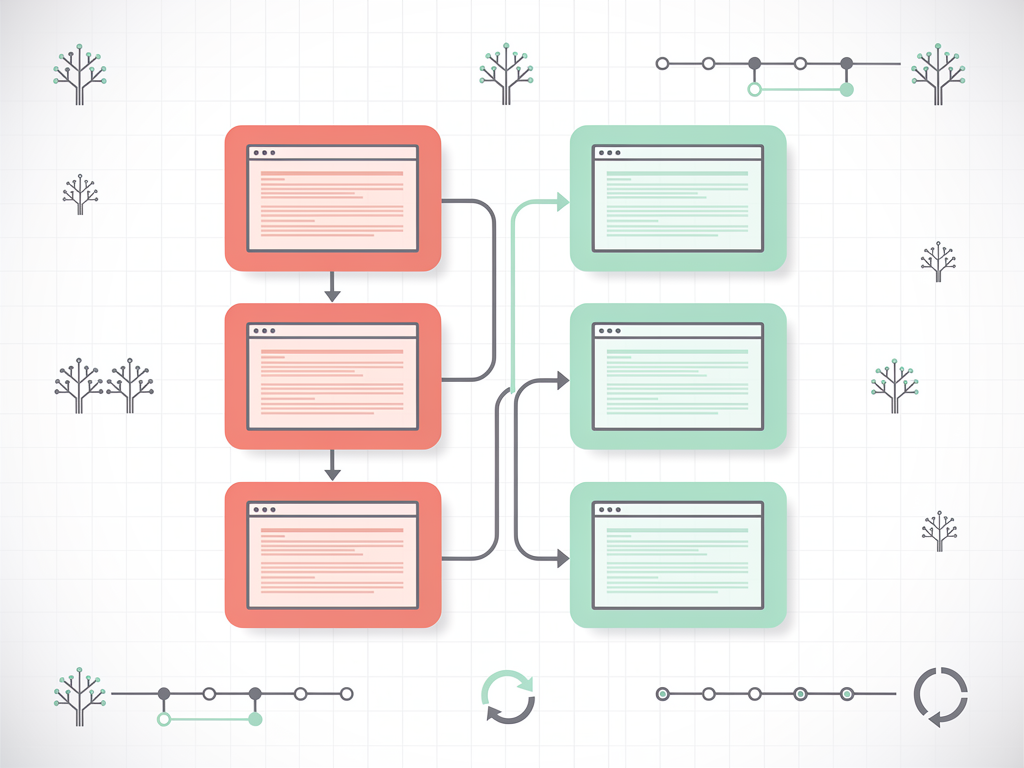
Modern development involves numerous tools that can integrate with Git and GitHub to create a seamless workflow. Understanding these integrations helps you build an efficient development environment.
IDE Integration brings Git functionality directly into your code editor. Visual Studio Code has excellent built-in Git support, showing changed files, providing diff views, and enabling commits without leaving the editor. JetBrains IDEs (WebStorm, IntelliJ) offer even more sophisticated Git integration with visual merge tools and branch management. These integrations reduce context switching and make version control feel natural rather than like an additional task.
Project Management Integration connects your GitHub issues and pull requests with tools like Jira, Linear, or Notion. You can automatically move issues between columns when pull requests are opened or merged. Commit messages can reference issue numbers to create bidirectional links. This integration provides visibility into development progress without requiring developers to update multiple systems manually.
Communication Tool Integration keeps your team informed about repository activity. GitHub integrates with Slack, Microsoft Teams, and Discord to send notifications about pull requests, issues, deployments, and more. Configure notifications thoughtfully to avoid overwhelming your team. Typically, notifications for pull request reviews and deployment status are most valuable, while commit notifications can be noisy.
Deployment Platform Integration enables automatic deployments from GitHub. Vercel, Netlify, and similar platforms can deploy your application automatically when code merges to specific branches. This creates a continuous deployment pipeline with minimal configuration. For SaaS applications, you might deploy to a staging environment from the develop branch and to production from main, with preview deployments for every pull request.
Monitoring and Observability Integration connects deployments to your monitoring tools. Services like Sentry, Datadog, and New Relic can track which deployment introduced a bug or performance regression. By tagging releases with Git commit hashes, you create traceability from customer-reported issues back to specific code changes. This dramatically reduces the time to identify and fix production problems.
Security Best Practices for Git and GitHub
Security must be a priority for any SaaS development team. Git and GitHub provide numerous features to protect your codebase and credentials, but they require proper configuration and ongoing vigilance.
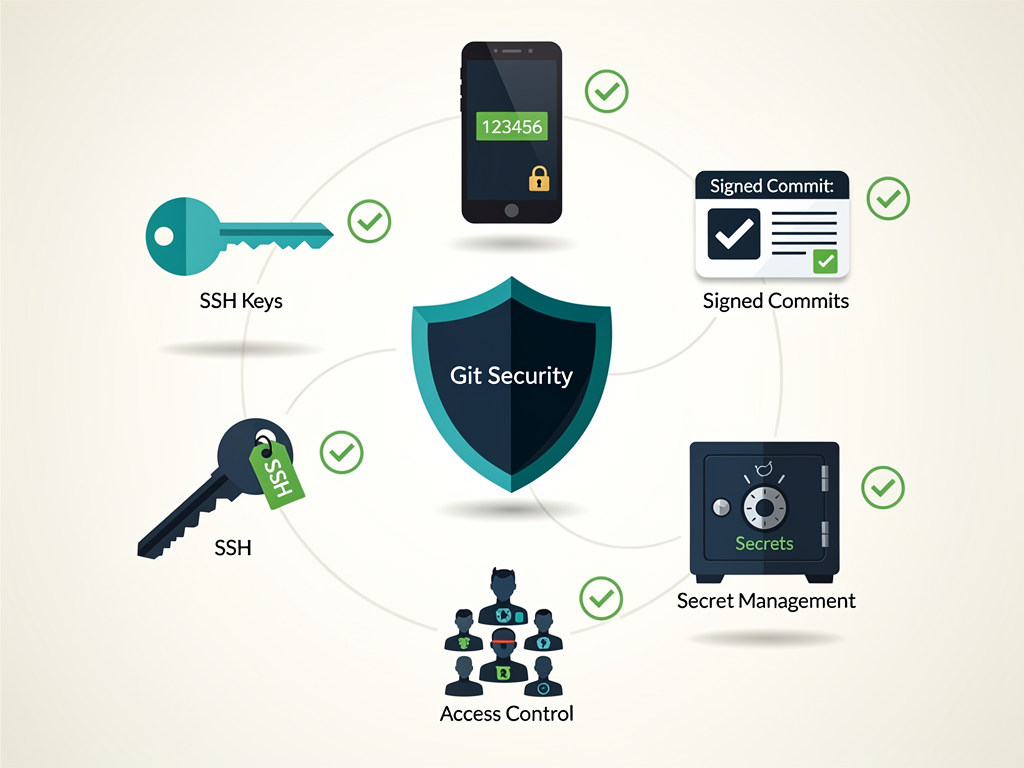
SSH Key Authentication should replace password authentication for Git operations. Generate an SSH key pair with ssh-keygen -t ed25519 -C "your@email.com", add the public key to your GitHub account, and configure your repositories to use SSH URLs. This eliminates the risk of password theft and provides stronger authentication. Consider using a hardware security key for additional protection.
Two-Factor Authentication must be enabled on all GitHub accounts. GitHub supports authenticator apps, SMS (less secure), and hardware security keys. For organizations, you can require 2FA for all members, ensuring that a compromised password alone cannot grant repository access. This is especially critical for SaaS teams with access to customer data.
Signed Commits verify that commits actually come from who they claim to. Configure GPG or SSH signing for your commits with git config --global commit.gpgsign true. GitHub displays a "Verified" badge on signed commits, helping teams identify potentially malicious commits from compromised accounts. For high-security environments, require signed commits through branch protection rules.
Secret Management keeps sensitive credentials out of your repository. Never commit API keys, database passwords, or other secrets to Git. Use environment variables for local development and GitHub Secrets for CI/CD workflows. Tools like GitHub's encrypted secrets store sensitive values securely and make them available to workflows without exposing them in logs.
Access Control should follow the principle of least privilege. Use GitHub's role-based access control to grant only the permissions each team member needs. Outside collaborators should have limited access. Review access regularly and remove it promptly when team members leave. For sensitive repositories, consider requiring approval for outside collaborators and fork visibility restrictions.
Scaling Git Workflows for Growing SaaS Teams
What works for a two-person startup may not work for a twenty-person team. As your SaaS company grows, your Git and GitHub workflows must evolve to maintain productivity and code quality.
Code Ownership becomes important as codebases grow. GitHub's CODEOWNERS file lets you specify which team members are automatically requested for review when certain files change. For example, changes to payment processing code might require review from the billing team, while authentication changes require security team review. This ensures domain experts review relevant changes without manual assignment.
Monorepo vs. Multi-Repo decisions affect how you structure your codebase. A monorepo keeps all code in a single repository, simplifying dependency management and enabling atomic changes across components. Multi-repo separates concerns into distinct repositories, providing clearer boundaries and independent deployment. Many SaaS companies start with a monorepo and split into multiple repositories as teams and services become more independent.
Review Processes must scale without becoming bottlenecks. Establish clear guidelines for when reviews are required (always for production code, optional for documentation). Set expectations for review turnaround time (within one business day). Use automated checks to catch common issues before human review. Consider pair programming as an alternative to asynchronous review for complex changes.
Documentation and Onboarding become critical as teams grow. Maintain up-to-date documentation for your Git workflow, branching strategy, and deployment process. Create onboarding guides that walk new developers through setting up their environment and making their first contribution. Record videos demonstrating common workflows. Good documentation reduces the burden on senior developers and helps new team members contribute quickly.
Metrics and Insights help identify workflow problems. Track metrics like pull request cycle time (from open to merge), review turnaround time, and deployment frequency. GitHub provides some of these metrics through the Insights tab. Third-party tools like LinearB, Sleuth, and Pluralsight Flow offer more detailed engineering metrics. Use these insights to identify bottlenecks and continuously improve your workflow.
GitHub Alternatives and When to Consider Them
While GitHub dominates the market, alternatives exist that may better suit specific needs. Understanding your options ensures you choose the right platform for your SaaS project.
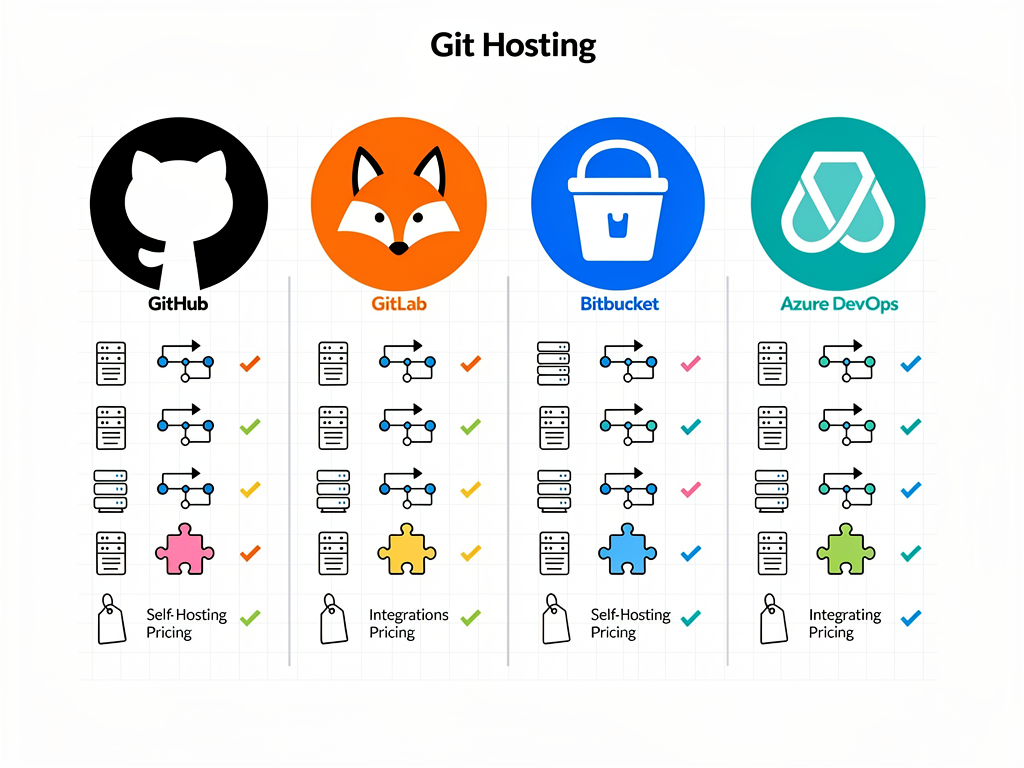
GitLab offers a comprehensive DevOps platform with built-in CI/CD, container registry, and security scanning. Unlike GitHub, GitLab is available as a self-hosted option, giving you complete control over your data. GitLab's integrated approach means fewer third-party tools, but some find its interface less intuitive than GitHub's. Consider GitLab if data sovereignty is important or you want an all-in-one DevOps platform.
Bitbucket integrates tightly with other Atlassian products like Jira and Confluence. If your organization already uses the Atlassian ecosystem, Bitbucket provides seamless integration. Bitbucket offers both cloud and self-hosted (Data Center) options. Its pricing model based on users rather than features can be more economical for larger teams.
Azure DevOps provides Git repository hosting alongside project management, CI/CD, and artifact management. For organizations already invested in the Microsoft ecosystem, Azure DevOps offers tight integration with Azure cloud services and Visual Studio. It is particularly strong for enterprises with existing Microsoft agreements.
Self-Hosted Options like Gitea, Gogs, or GitLab Community Edition let you run your own Git hosting. This provides maximum control over your data and can reduce costs for larger teams. However, self-hosting requires infrastructure management and security maintenance. Consider self-hosting if you have specific compliance requirements or want to avoid vendor lock-in.
For teams building no-code SaaS platforms, solutions like NextBuilder provide specialized boilerplates that integrate well with any Git hosting platform, allowing you to focus on building features rather than infrastructure.
Optimizing Your Git Configuration for Productivity
A well-configured Git environment dramatically improves daily productivity. These optimizations may seem small individually but compound into significant time savings over months of development.
Git Aliases create shortcuts for frequently used commands. Add aliases to your ~/.gitconfig file to save keystrokes. Common aliases include co = checkout, br = branch, ci = commit, and st = status. More powerful aliases can combine multiple commands, like sync = !git fetch origin && git rebase origin/main to update your branch in one command.
Global .gitignore prevents common files from cluttering your repositories. Create a ~/.gitignore_global file with patterns for OS-specific files (.DS_Store, Thumbs.db), IDE configurations (.idea, .vscode), and other personal files. Configure Git to use it with git config --global core.excludesfile ~/.gitignore_global. This keeps your repository .gitignore focused on project-specific exclusions.
Credential Caching reduces authentication prompts. On macOS, use the osxkeychain helper. On Windows, use the Git Credential Manager. On Linux, configure the cache helper with a timeout. Better yet, use SSH keys to avoid credential prompts entirely. Smooth authentication removes friction from your Git workflow.
Default Branch Configuration ensures new repositories use your preferred branch name. Run git config --global init.defaultBranch main to use "main" instead of "master" for new repositories. This aligns with GitHub's default and modern conventions.
Diff and Merge Tools can be configured to use visual applications instead of command-line interfaces. Configure your preferred diff tool with git config --global diff.tool [tool] and merge tool with git config --global merge.tool [tool]. Popular options include VS Code, Beyond Compare, and Kaleidoscope. Visual tools make complex diffs and merges much easier to understand.
Commit Message Templates ensure consistency across your team. Create a template file with your preferred format and configure Git to use it with git config --global commit.template ~/.gitmessage. Include sections for type of change, brief description, and any issue references. Templates reduce cognitive load and improve commit history readability.
Building a Culture of Version Control Excellence
Technical tools are only as effective as the culture surrounding them. Building a team culture that values version control practices leads to better code quality and faster development.
Commit Hygiene should be a team value. Encourage atomic commits that represent a single logical change. Each commit should leave the codebase in a working state. Avoid commits with messages like "WIP," "fix," or "stuff." Good commit messages explain why a change was made, not just what changed. Review commit history during code reviews and provide feedback on commit quality.
Code Review Culture determines whether pull requests are productive or perfunctory. Establish that reviews are about improving code, not criticizing developers. Reviewers should explain their suggestions and be open to discussion. Authors should respond to all comments, even if just to acknowledge them. Celebrate thorough reviews that catch issues before production.
Documentation Habits ensure knowledge persists beyond individual developers. Update README files when setup processes change. Document architectural decisions in ADR (Architecture Decision Records) format. Comment complex code sections. Good documentation in version control means the answers are always available when questions arise.
Continuous Learning keeps skills sharp as Git and GitHub evolve. Share interesting Git techniques in team channels. Conduct occasional workshops on advanced topics like interactive rebasing or bisecting. Encourage experimentation with new GitHub features. A team that continuously improves its version control skills ships better software faster.
Blameless Post-Mortems turn mistakes into learning opportunities. When something goes wrong (a bad merge, a production incident from a missed review), conduct a blameless analysis focused on improving processes rather than assigning fault. Document what happened, why it happened, and what changes will prevent recurrence. This approach encourages transparency and continuous improvement.

Real-World Workflow Example for SaaS Development
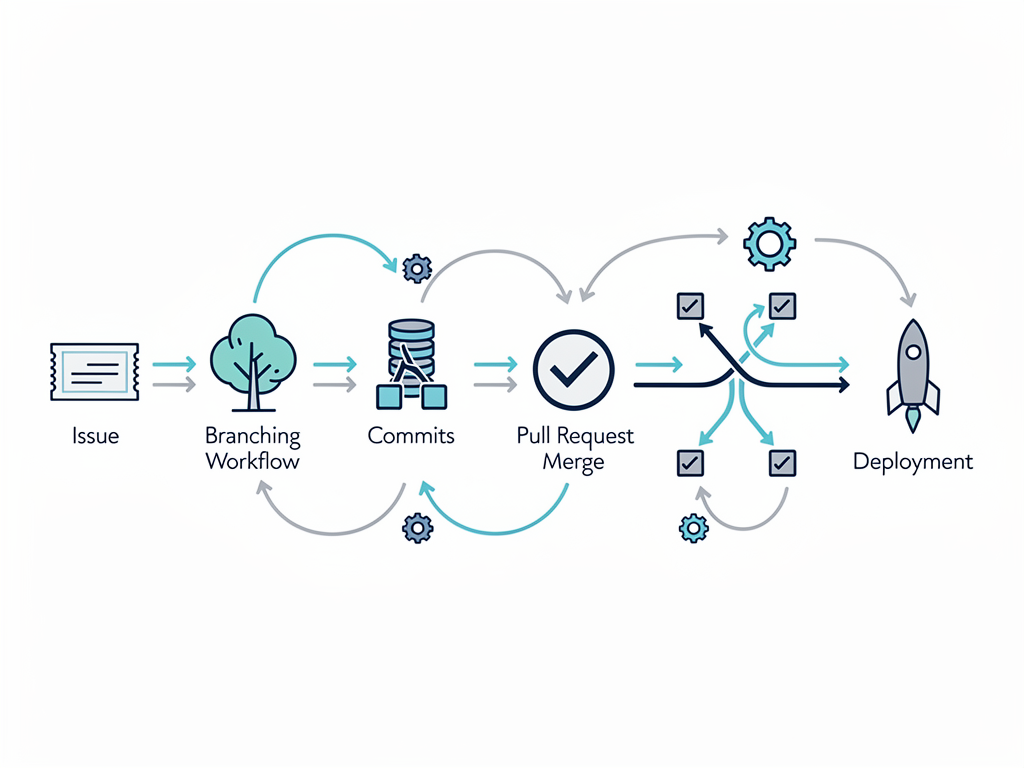
Let us walk through a concrete example of how a SaaS development team might use Git and GitHub to develop, review, and deploy a new feature.
Step 1: Create an Issue. A product manager creates a GitHub issue describing a new feature: "Add email notification preferences to user settings." The issue includes acceptance criteria, design mockups, and any technical considerations. The issue is assigned to a developer and added to the current sprint's project board.
Step 2: Create a Feature Branch. The developer creates a branch from main with a descriptive name: git checkout -b feature/email-notification-preferences. The branch name includes the type (feature) and a brief description. Some teams include the issue number: feature/123-email-notification-preferences.
Step 3: Develop and Commit. The developer implements the feature, making commits as logical units of work are completed. Commits might include "Add notification preferences schema to database," "Create preferences API endpoints," "Build preferences UI component," and "Add tests for notification preferences." Each commit is small enough to review easily but complete enough to be meaningful.
Step 4: Push and Open Pull Request. When the feature is complete, the developer pushes the branch to GitHub and opens a pull request. The PR description references the issue ("Closes #123"), describes the implementation approach, includes screenshots of the UI, and notes any deployment considerations. The PR template ensures all necessary information is provided.
Step 5: Automated Checks Run. GitHub Actions automatically runs the test suite, linting, and any other configured checks. The developer monitors these and addresses any failures. Passing checks are required before the PR can be merged.
Step 6: Code Review. Team members review the code, leaving comments on specific lines and general feedback. The developer responds to comments, makes requested changes, and pushes additional commits. Discussion continues until reviewers approve the changes.
Step 7: Merge and Deploy. Once approved and all checks pass, the developer merges the pull request. GitHub Actions automatically deploys the change to the staging environment. After verification in staging, a separate workflow deploys to production. The issue is automatically closed when the PR merges.
Step 8: Monitor and Iterate. The team monitors the feature in production using observability tools. Any issues are tracked back to the relevant commits. User feedback informs future iterations, starting the cycle again.
Conclusion
Understanding the distinction between Git and GitHub is fundamental for any SaaS development team aiming to ship products efficiently and collaboratively. Git provides the powerful version control foundation that tracks every change to your codebase, enables parallel development through branching, and ensures you can always recover from mistakes. GitHub builds on this foundation with collaboration features, automation capabilities, and security tools that transform individual developers into high-performing teams.
For SaaS startups and development teams, mastering both technologies is not optional. The ability to manage code changes, collaborate effectively, automate testing and deployment, and maintain security directly impacts your ability to deliver value to customers. Whether you are working with a sophisticated Next.js SaaS template or building from scratch, these version control fundamentals remain constant.
Start by ensuring every team member understands basic Git commands and concepts. Establish clear workflows and conventions early, before bad habits form. Leverage GitHub's features progressively, adding automation and security measures as your team and product mature. Build a culture that values version control excellence, where good commits, thorough reviews, and continuous improvement are celebrated.
The investment in mastering Git and GitHub pays dividends throughout your product's lifecycle. Fewer bugs reach production. Onboarding new developers becomes faster. Debugging production issues becomes easier. Your team ships with confidence, knowing that version control has their back. In the competitive SaaS landscape, this operational excellence can be the difference between success and failure.
Frequently Asked Questions
Can I use Git without GitHub?
Absolutely. Git is a standalone version control system that runs entirely on your local machine. You can use Git for personal projects without ever connecting to GitHub or any other remote hosting service. Many developers use Git locally for years before adopting a remote hosting platform. However, for team collaboration, you will need some form of remote repository, whether that is GitHub, GitLab, Bitbucket, or a self-hosted solution. The key point is that Git provides the version control functionality, while GitHub provides the collaboration and hosting layer. You might also use Git with alternative hosting platforms if GitHub does not meet your specific requirements for pricing, features, or data sovereignty.
How do I resolve merge conflicts effectively?
Merge conflicts occur when Git cannot automatically combine changes from different branches because the same lines were modified differently. To resolve conflicts effectively, first understand what each version is trying to accomplish by examining the surrounding code and commit messages. Open the conflicted file in your editor, where Git marks conflicts with special markers showing both versions. Decide which changes to keep, which to discard, and whether to combine elements from both. After editing, remove the conflict markers entirely. Test your resolution thoroughly before committing. To minimize conflicts, merge the main branch into your feature branch regularly (daily is ideal), keep feature branches short-lived, and communicate with teammates when working on related code areas.
What is the best branching strategy for a small SaaS team?
For small SaaS teams (under ten developers), GitHub Flow typically provides the best balance of simplicity and control. In this strategy, the main branch is always deployable, developers create feature branches for all changes, pull requests enable code review, and merging triggers deployment. This approach minimizes process overhead while maintaining quality gates. As your team grows or your release process becomes more complex, you might evolve toward Git Flow with dedicated release branches or trunk-based development with feature flags. The key is starting simple and adding complexity only when specific problems require it. Avoid adopting complex branching strategies prematurely, as the overhead often outweighs the benefits for smaller teams.
How should I write good commit messages?
Good commit messages follow a consistent format and provide meaningful context. Start with a brief subject line (50 characters or less) in imperative mood, describing what the commit does ("Add user authentication" not "Added user authentication"). Leave a blank line, then provide a more detailed body explaining why the change was made, any important implementation details, and references to related issues or documentation. Avoid vague messages like "fix bug" or "update code" that provide no useful information. Consider using conventional commit formats (feat:, fix:, docs:, etc.) for automated changelog generation. Remember that commit messages are documentation for your future self and teammates. Six months from now, a good commit message helps you understand why a change was made without reading the code.
How do I keep my GitHub repository secure?
Repository security requires multiple layers of protection. Enable two-factor authentication for all team members and consider requiring it at the organization level. Use SSH keys instead of passwords for Git operations. Enable branch protection rules requiring pull request reviews and passing status checks before merging. Never commit secrets like API keys or passwords; use environment variables and GitHub Secrets instead. Enable Dependabot to automatically flag and update vulnerable dependencies. Use GitHub's secret scanning to detect accidentally committed credentials. Implement signed commits for additional verification. Regularly audit repository access and remove permissions for departed team members promptly. For SaaS applications handling customer data, these security measures are not optional but essential for maintaining customer trust and regulatory compliance.
What GitHub features should every SaaS team use?
Every SaaS team should leverage several core GitHub features to maximize productivity and code quality. GitHub Actions provides CI/CD automation for running tests, linting, and deploying code automatically. Pull request templates standardize the information provided for code reviews, improving review quality and speed. Branch protection rules prevent accidental pushes to production branches and enforce review requirements. Issue templates structure bug reports and feature requests for faster resolution. Dependabot keeps dependencies updated and flags security vulnerabilities automatically. Code owners automatically assign reviewers based on file paths, ensuring domain experts review relevant changes. GitHub Projects provides lightweight project management integrated with your code. Start with these fundamentals and explore additional features like Codespaces, Copilot, and advanced security scanning as your needs evolve.
Ready to Accelerate Your SaaS Development?
Now that you understand how Git and GitHub power modern SaaS development workflows, it is time to put this knowledge into practice. If you are building a SaaS application and want to skip months of boilerplate setup, explore SaasCore's comprehensive Next.js boilerplate. With built-in authentication, payments, admin panels, and email marketing already configured, you can focus on building features that differentiate your product. The boilerplate comes with a well-structured Git repository and follows all the best practices discussed in this article, giving you a professional foundation from day one. Try the demo and see how much faster you can ship your SaaS product.
Subscribe to our newsletter
Subscribe to our newsletter and stay up-to-date with the latest news and updates.